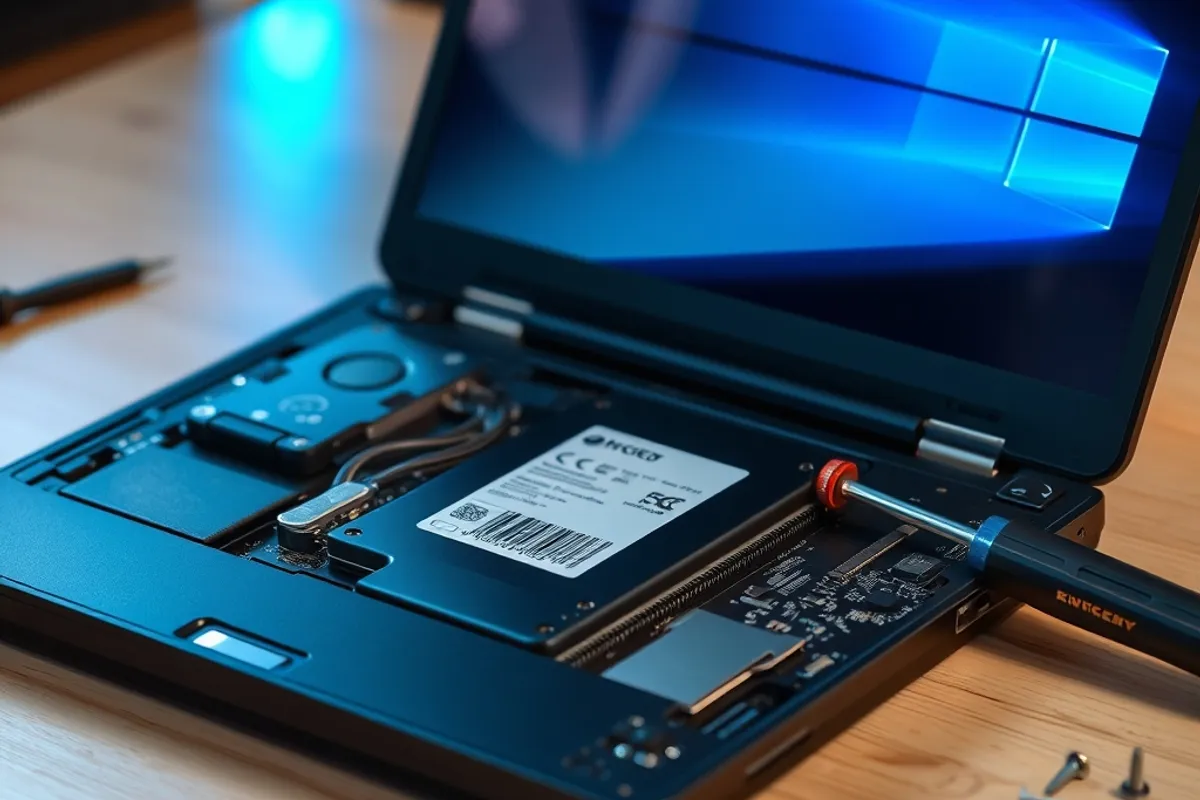
A five-year-old laptop with a spinning hard drive feels ancient. The same laptop with a solid-state drive often feels two generations newer, for a fraction of the price of a replacement. Storage is the cheapest meaningful upgrade left in computing, and in 2026 the choice is less about whether to switch than about which drive and how much space.
The Speed Difference in Real Use
A hard drive reads data by moving a physical head, so it waits tens of milliseconds for each random access. An SSD has no moving parts and answers in fractions of a millisecond. Boot times drop from a minute to ten seconds, applications open without the spinning wait, and updates finish sooner. Large sequential copies are faster too, though the gap narrows on very large files.
- SATA SSD: 500 to 550 MB/s, about $50 per terabyte
- NVMe SSD: 3,000 to 7,000 MB/s, about $60 to $90 per terabyte
- Hard drive: 150 to 200 MB/s, about $25 per terabyte
- Boot time: about 10 seconds on SSD versus a minute on HDD
- Old-laptop upgrade: often under $80 total
When an Upgrade Beats a New Machine
Upgrade if the processor and memory are still adequate and the only complaint is slowness. A laptop with 8 GB or more of memory and a recent dual-core chip will feel usable again with an SSD. Check the drive bay first: some thin laptops use a soldered or unusual form factor, and some older machines only accept a SATA drive. Look up the exact model before buying parts.
Do not upgrade if the battery is failing, the screen is damaged or the machine cannot run a supported operating system. At that point the money is better spent on a replacement. A reasonable rule is to spend no more than a third of the price of a comparable new machine on repairs and upgrades.
An SSD does not make an old computer faster at everything. It removes the waiting that made it feel slow.
SATA or NVMe
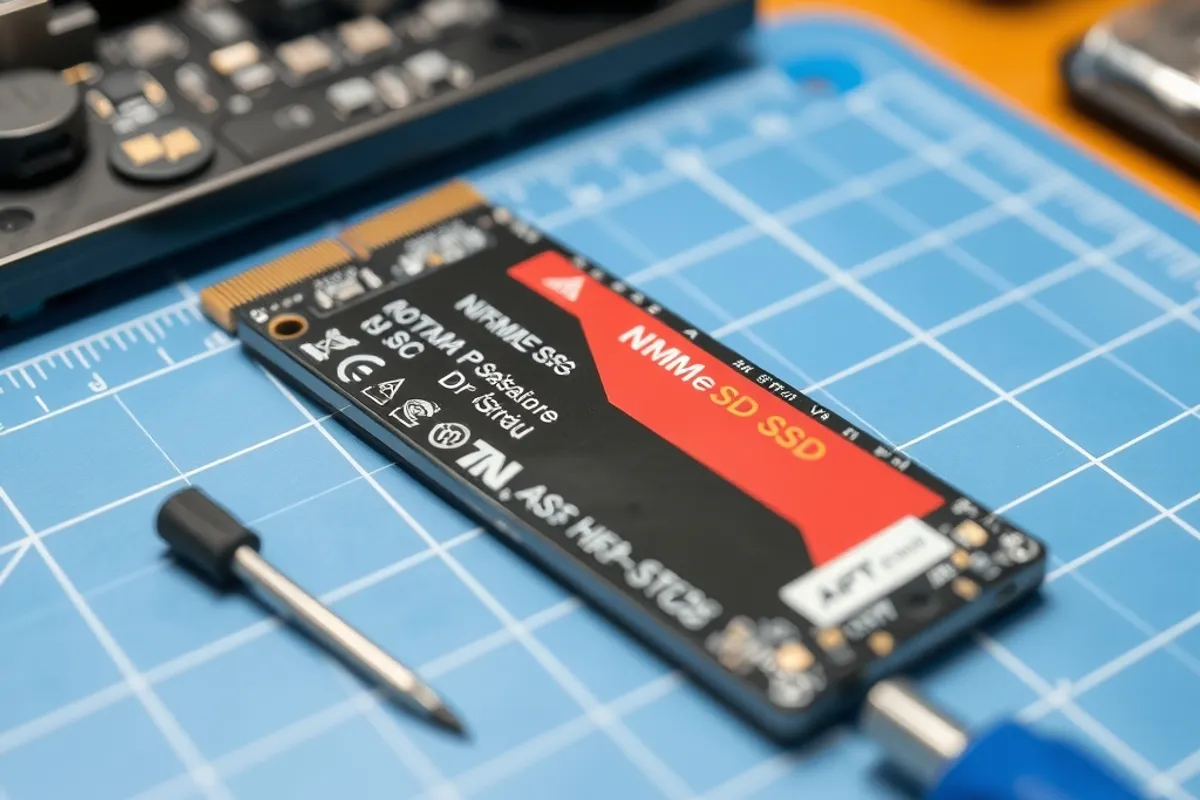
NVMe drives connect directly to the processor and are dramatically faster on paper. In everyday use, the difference between a good SATA SSD and an NVMe drive is smaller than the numbers suggest, because most tasks are limited by the processor, not the disk. If your machine supports NVMe, buy it; the price gap is small. If it only supports SATA, a quality SATA drive is still a huge improvement over a hard drive.
Capacity matters as much as speed. A drive that is more than 80 percent full slows down, especially on cheaper models. Buy one size larger than you think you need, or plan to move media to external storage. For a work laptop, 1 TB is a comfortable baseline in 2026.
Cloning, Backup and the Install
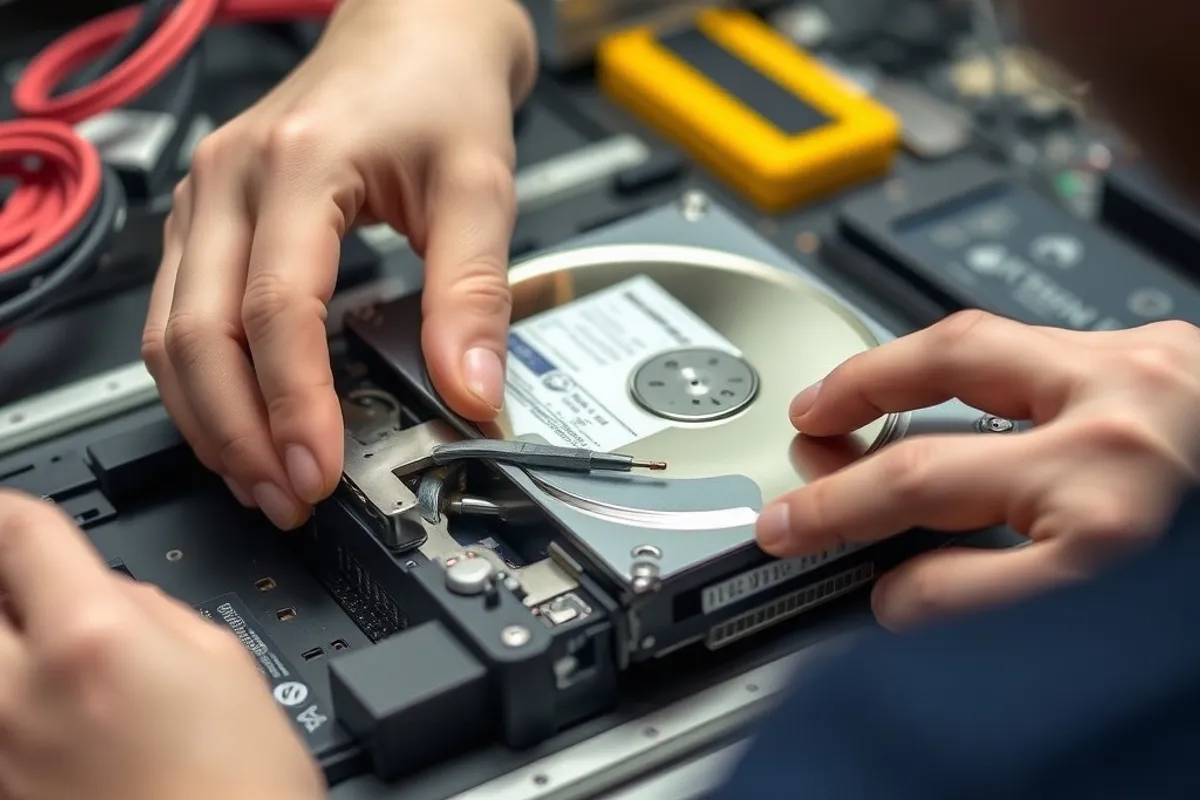
You can clone the old drive to the new one, but a clean install is usually faster and removes years of clutter. Back up everything first, twice, to two different places. Confirm the new drive is detected in the firmware before you start, and keep the old drive until the new system has booted and updated successfully.
If you clone, check that the partition table matches the firmware mode. A drive cloned in the wrong mode will not boot, which is a common and avoidable panic. Many SSD makers include cloning software; use it only if you understand what it is copying. A clean install also gives you the chance to enable full-disk encryption from day one, which matters if the laptop leaves the house. Our home network security checklist covers the rest of the setup.
External Drives and Backup Drives
SSDs are excellent for portable drives because they survive knocks and do not need spin-up time. Hard drives still win on price per terabyte for large backups and media archives. A sensible setup is a fast SSD inside the computer and a large hard drive for backup. Keep one backup off-site or in the cloud, because a drive that sits next to the laptop does not protect against theft or fire.
For official guidance on secure data disposal when you retire an old drive, the NIST privacy resources are a useful reference. Wipe or physically destroy drives that held personal data; deleting files is not enough. If you are also choosing a new laptop, our remote work laptop guide explains where to spend the rest of the budget.
The Bottom Line
In 2026, a hard drive belongs in a backup enclosure, not in the computer you use every day. If a machine is otherwise sound, an SSD is the best money you can spend on it. If it is not, put the money toward a replacement and keep the old drive as an external backup.